










A Complete Guide to Auto Correction in HOVERAir Angle Track
What is Auto Correction?
During Angle Track, rapid movement, acceleration, or quick turns by the user can cause your Hover device's relative position to the subject to change. With Auto Correction enabled, the device detects your direction of movement and will maintain its position relative to your direction of movement.
This means that in Angle Track, the device will maintain its initial relative position to you—whether that’s front-right, back-left, or any angle you originally set—so your framing stays consistent as you move. With Autocorrect off,
your Hover will maintain its same cardinal orientation towards you. For example, if the device starts on your south side, it will remain on the south side regardless of how you turn left or right. As you walk east, it will film you from your right-hand side. If you walk south, it will fly backwards to maintain its distance to you. If you walk north, it will follow behind you. If you walk west, it will film you from your left-hand side. -- Depending on the control and effect you want, you can pick the appropriate flight mode and autocorrect setting.
When Should You Use Auto Correction?
Use Auto Correction based on the type of movement you want to capture:
| Setting | Behavior | Camera Movement | Shot Style | Best For |
| Auto Correction OFF | No side circling | More stable, minimal angle changes | Steady, consistent framing | Slow movement / landscapes |
| Auto Correction ON | Actively circles back | More dynamic movement and angle changes | Energetic, cinematic motion | Sports / fixed side-follow shots |
How to turn Auto Correction On or Off
Note: Auto Correction is OFF by default. You can enable or disable the feature through the Hover App or the Beacon.
(1) Via the App
- Open the Hover x1 App and connect to the flying camera.
- Go to Hover settings
-
Select Angle Track
. -
Locate Auto Correction and tap the switch:
- Green indicates ON
- Grey indicates OFF

(2) Via the Beacon
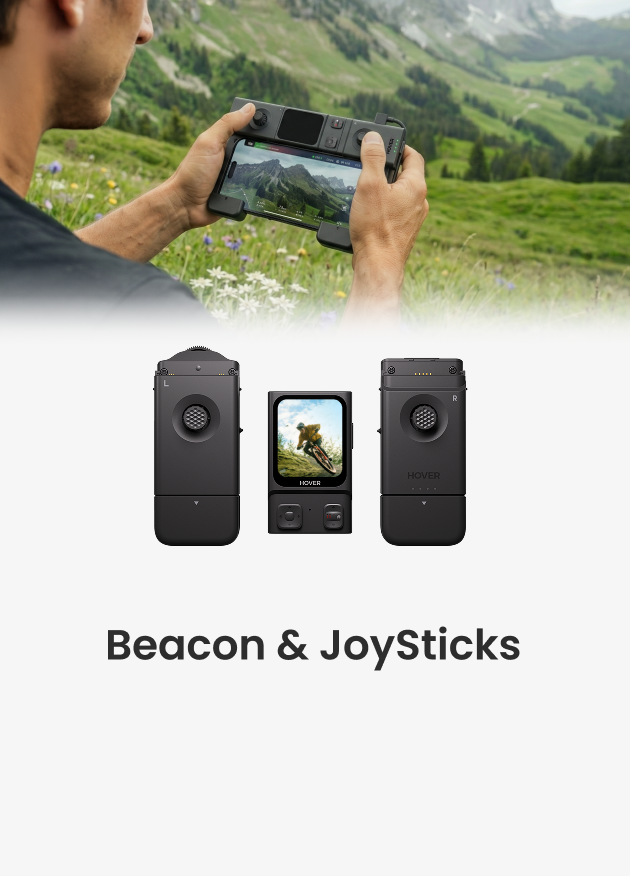
- Confirm that the Beacon is connected to the flying camera.
- Swipe right on the Beacon screen to enter the Flight Modes Selection page.
- Select Angle Track.
- Swipe up to open the Settings page.
- Find Auto Correction and set it to ON or OFF.


Note: Dolly Track also supports Auto Correction, using the same underlying principle to keep the device properly oriented as you move.


