











Introducing Pilot Assist: Manual Freedom with Automatic Framing

Table of Contents
Feature Overview
Pilot Assist gives you semi-automatic control for creators who want freedom in flight without losing perfect framing. You can launch PilotAssist from any non-follow mode. You control the movement, the device keeps you centered—simple, stable, and intuitive.
Pilot Assist vs. Manual Control vs. Copilot
| Pilot Assist | Manual Control | Copilot | |
| Available Modes | Non-follow modes (Hover, Zoom Out, Orbit, Bird's eye) | Manual Control Mode | Follow Modes |
| Subject Locking | Automatically locks onto the subject (Like manual control, but with you at the center) | No subject lock, full free flight control |
Automatically locks and follows the subject (moves with the subject) |

Usage Steps
- How to Enable It
(1) Via App
- Open the Hover X1 app and connect to the flying camera. Choose the non-follow mode that you want to use (Hover, Zoom Out, Orbit, Bird's eye, etc.).
- Note: if you want to enter directly into PilotAssist, you can use Hover mode.
- Enter Smart Preview on the Hover page, find Pilot Assist in the flight settings, and turn it on.


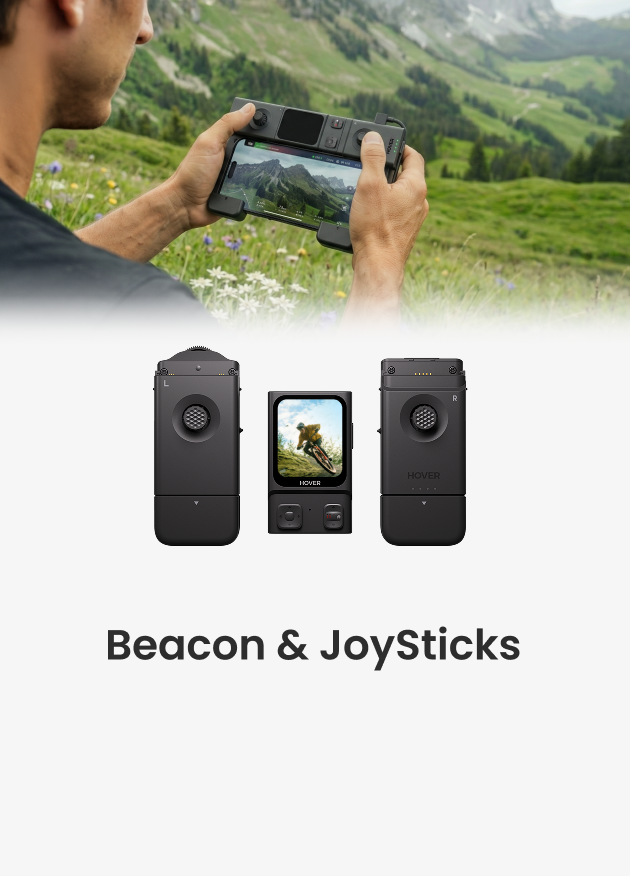
(2) Via Beacon
- Make sure the Beacon is connected to the flying camera.
- Tap the icon in the lower-left corner of the screen to enter the flight mode selection page.
- Choose the non-follow mode that you want to use.
- Swipe up to open the Settings page.
- Find the Pilot Assist and turn it on.


- How to use
- Use the Beacon’s direction buttons, or open Smart Preview from the Hover Settings page in the Hover X1 app and use the on-screen controls.
- Pilot Assist activates as soon as you press a direction button. The flying camera pauses its previous motion and hovers. From here, you control height, distance, and camera angle, just like manual control, but Pilot Assist keeps you centered automatically.
Tips
- If the subject is blocked or leaves the frame, the scene shows a red indicator and pauses the lock. When the subject returns, a green frame appears and you can continue control.
- Pilot Assist needs to be turned on manually the first time, and the device will remember your setting afterward.


